
To add comments to Photos in the Album OR to make comments on subjects in the Bulletin Board/Forum you must have an ID and Password. If you just want to view the Photo Album or Bulletin Board/Forum contents, you do not need a password/ID.
The instructions for the Photo Album follow.
For a PDF version of these instructions which you can print out for future reference,
click here: Album Instructions OR Bulletin Board Instructions
Album Instructions
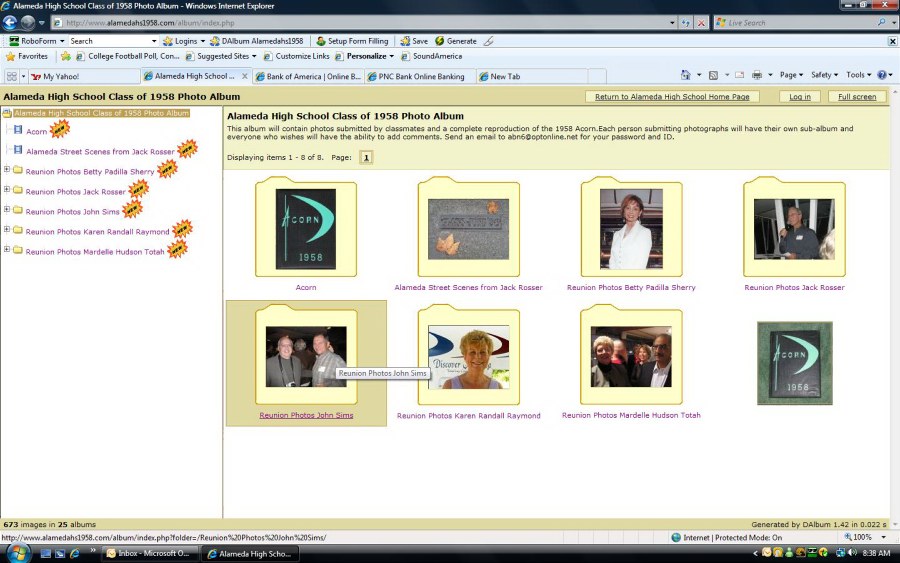
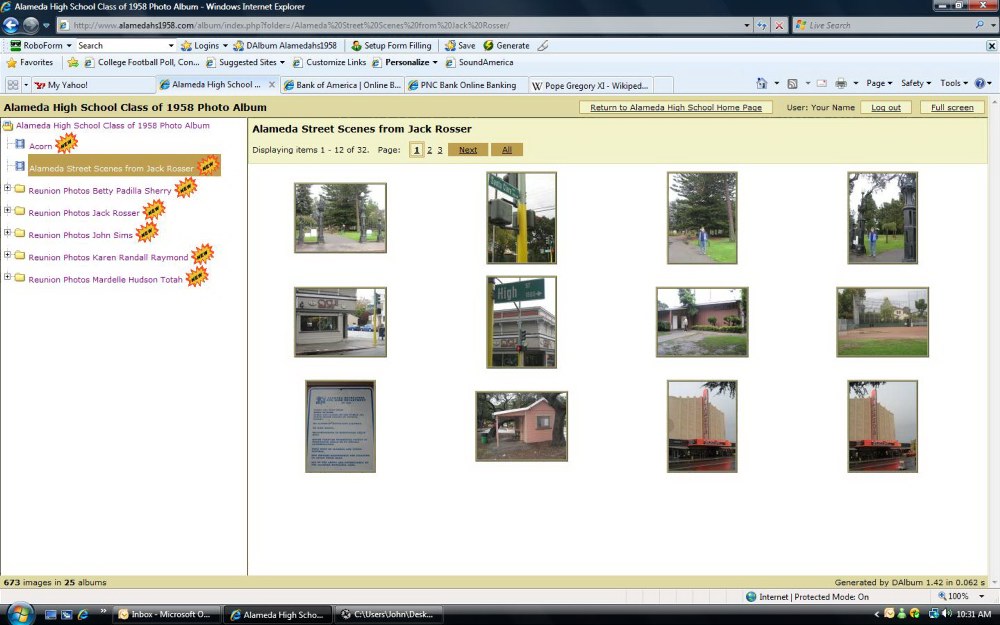
Click on the "Log In" link i
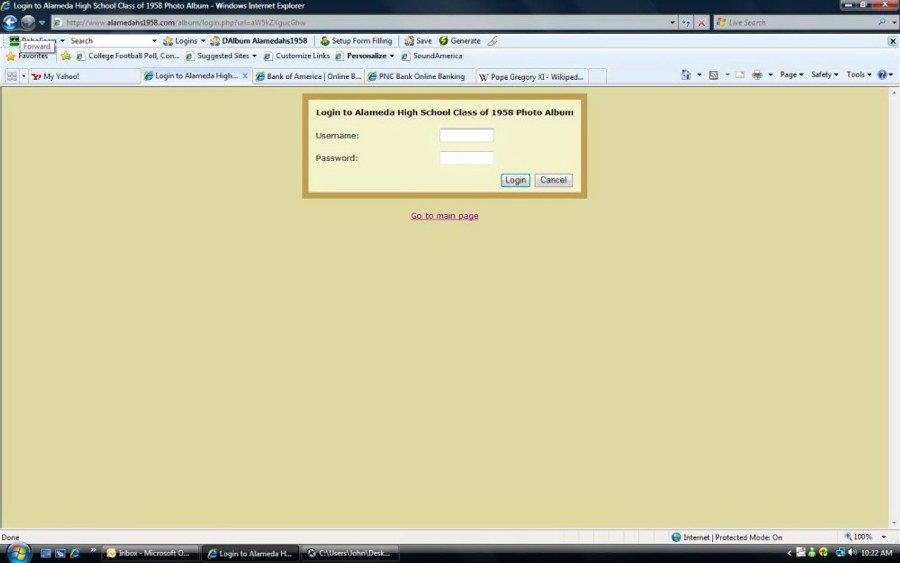
Enter your User Name and Password and click on the "Log In" button
i
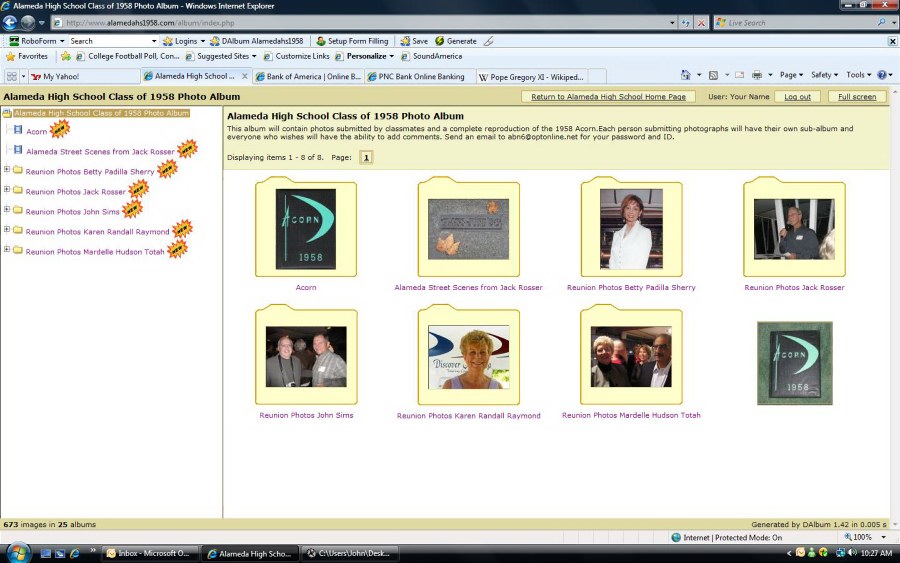
Click on the album and then the individual photo on which you wish to make comments.
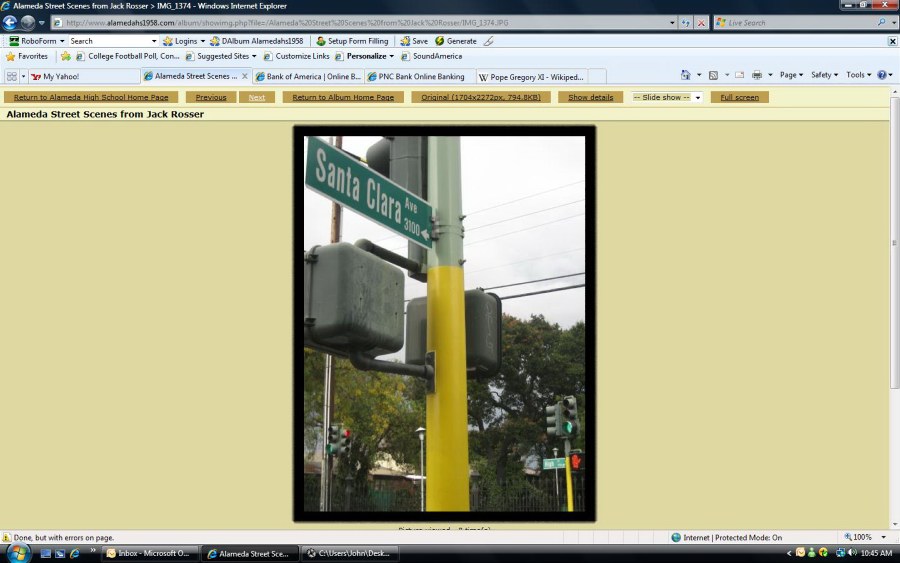
Enter your comments and click on the "Send" button. Note that your name will automatically appear

h
Move on to the next photo on which you wish to make comments
being sure to click on the "send" button each time.
When you are finished making comments click on the "Return to Album Home Page" Link
i
Then be sure to click on the "Log Out" link. i
Instructions for the Bulletin Board/ Forum
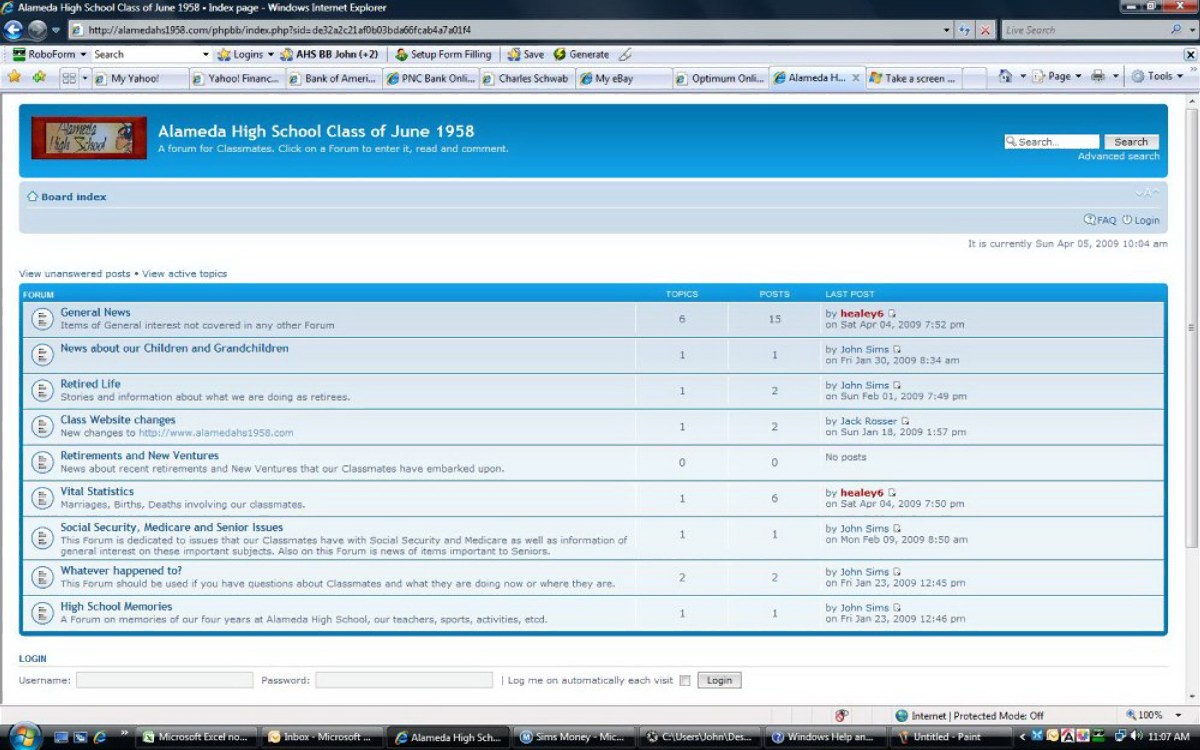
When you click on the "BlackBoard" link this screen will open
The Bulletin Board/Forum is composed of several Forums and within each Forum there are related Topics.
Within each Topic, Classmates have submitted Comments.
h h h
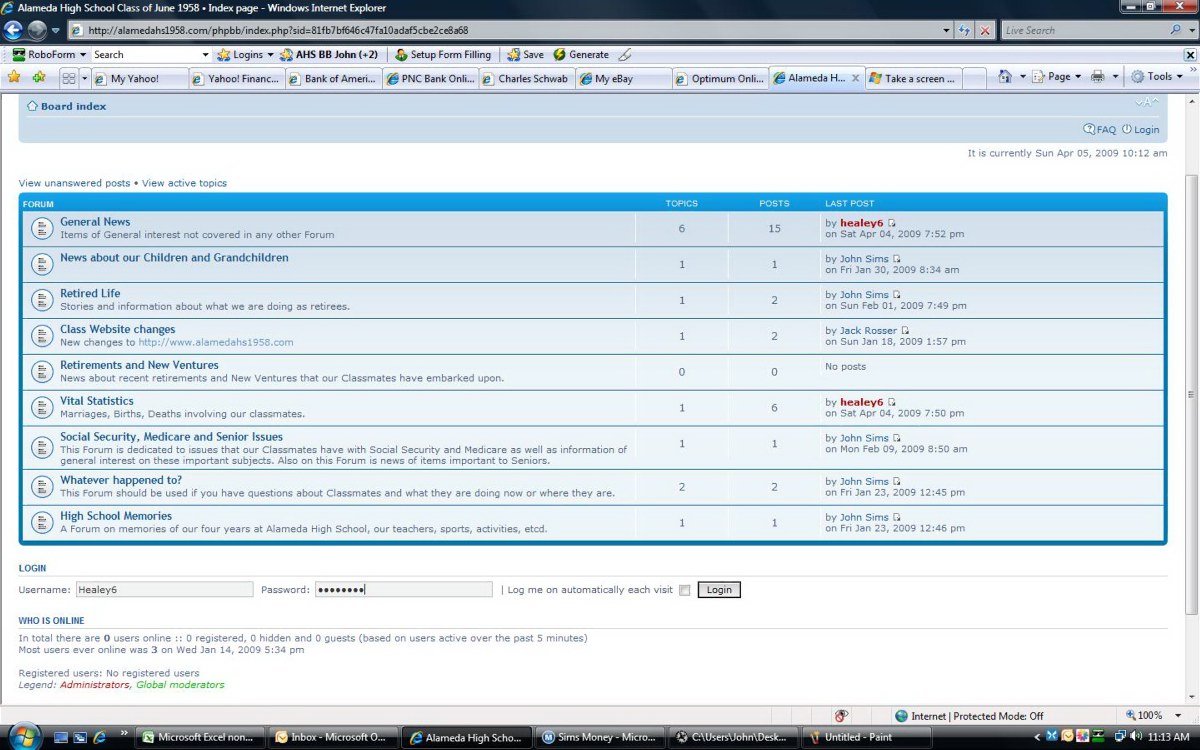
Sign in where indicated and click on the Login Button
h
Be sure to click on the Login Button
You should now have this screen which is the screen that shows the different Forums. Click on the forum that you wish to view and/or make comments on the Topics which the Forum contains. In this Example, we will be clicking on the Topic - "General News"
i
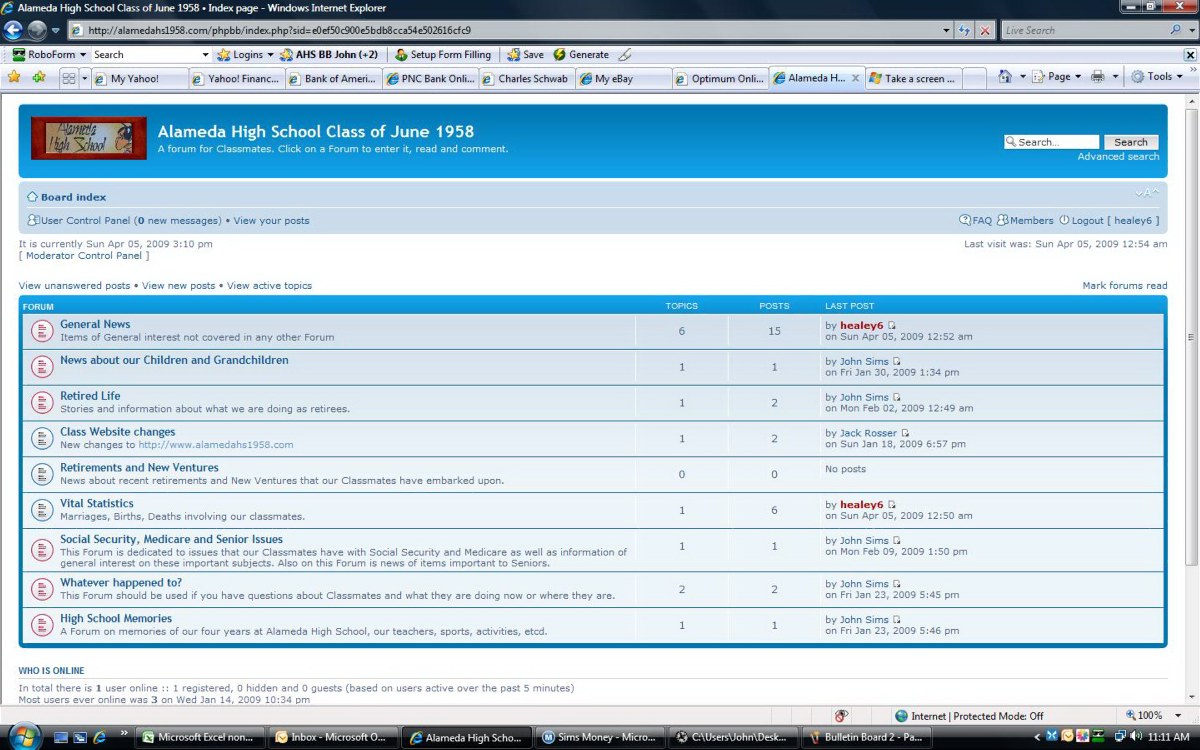
After clicking on the Topic you wish (In this Example, "General News") you will get the Topic screen as below.
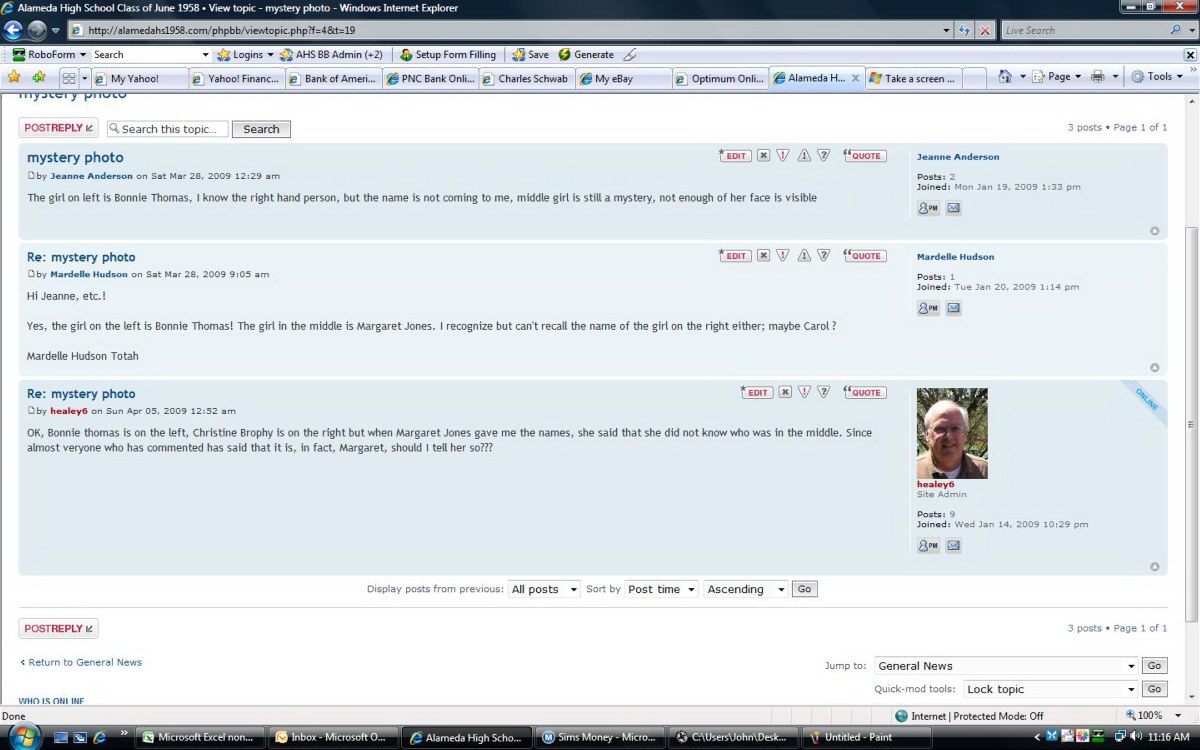
All of the Topics within the Forum will be visible and you then would click on the one you wish to see or comment upon. In this example, we will click on the Topic "Mystery Photo" and as can be seen in the next screen,
our Classmates individual comments will be shown.
i

Screen showing the individual posts within the Topic of "Mystery Photo"
h
If you wish to post a reply or make a comment on the subject, click on the Post Reply Button.
You will now see a screen as shown below.
(If you do not want to make a comment, just click on the Board Index on this or any screen button)
i
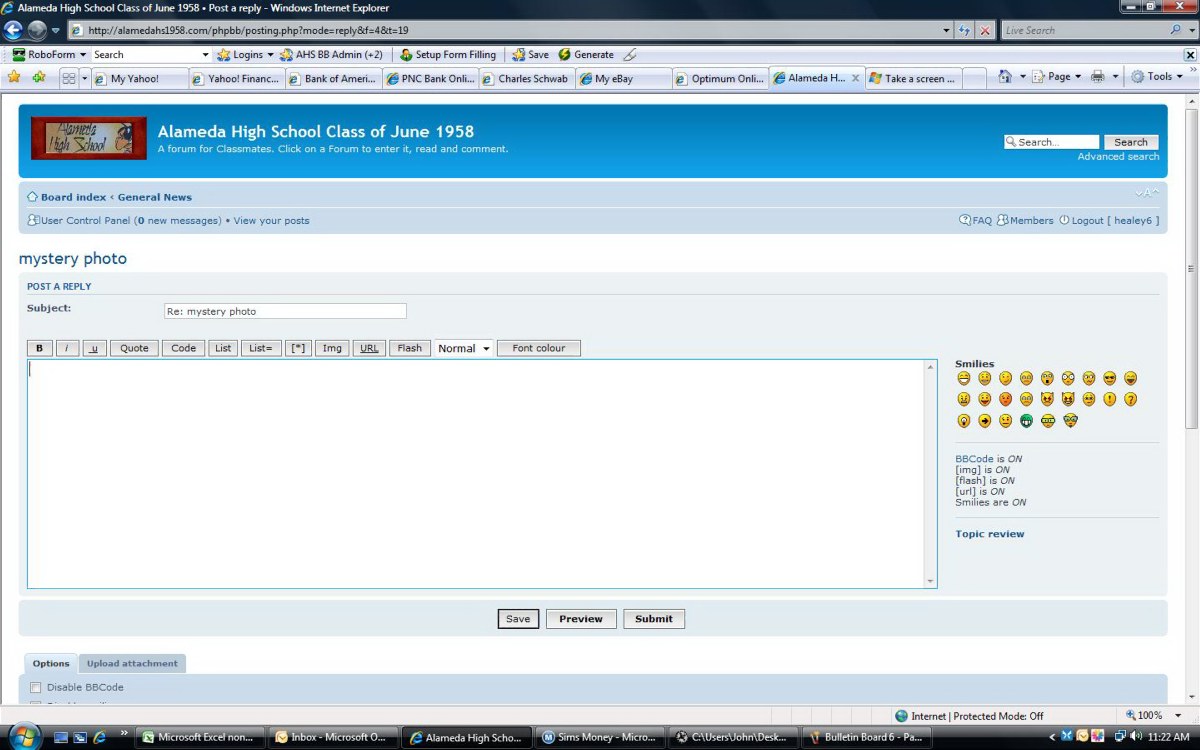
h
Enter your comment in the space provided and then click on the Submit button.
You can also insert "Smileys" by clicking on them.
Starting a New Topic
Go back to the Forum in which you wish to start a new topic, in the example below, "General News"
and click on the "New Topic" button
i
h
You will get a screen as below
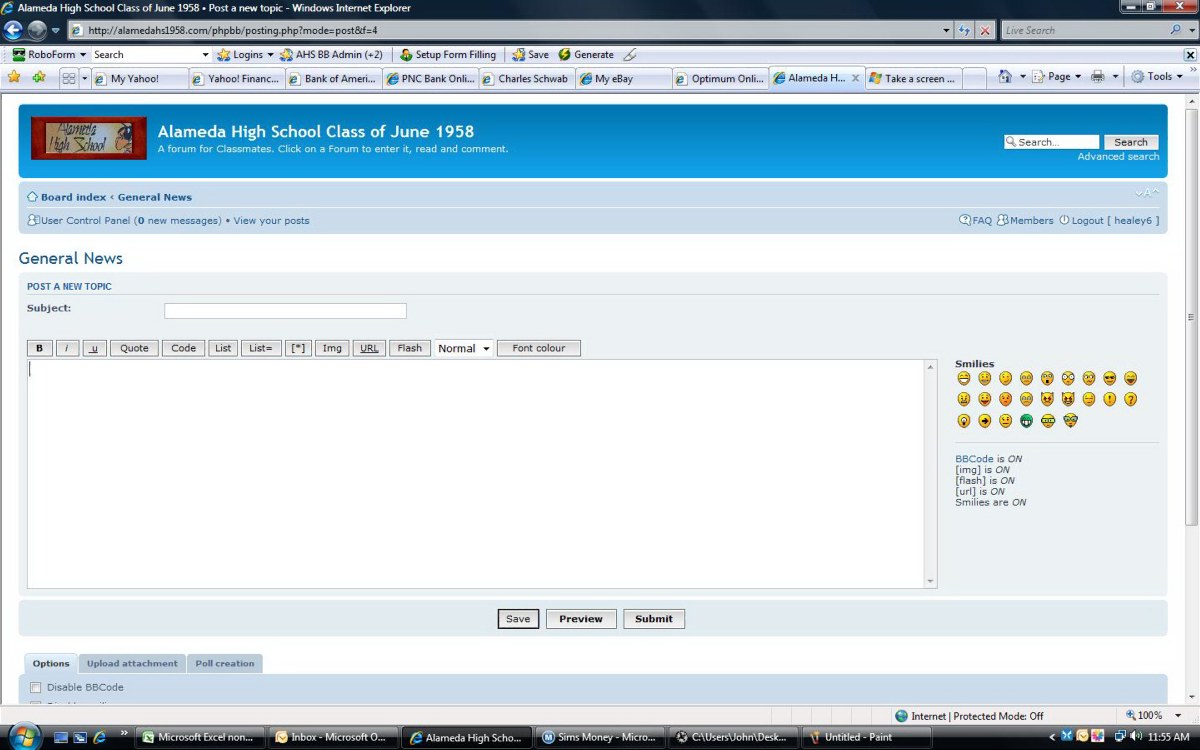
h
Give the new Topic a subject and then enter your text. When finished, click on the Submit button.
Your new Topic will appear as an addition to those shown below within the specific Forum.
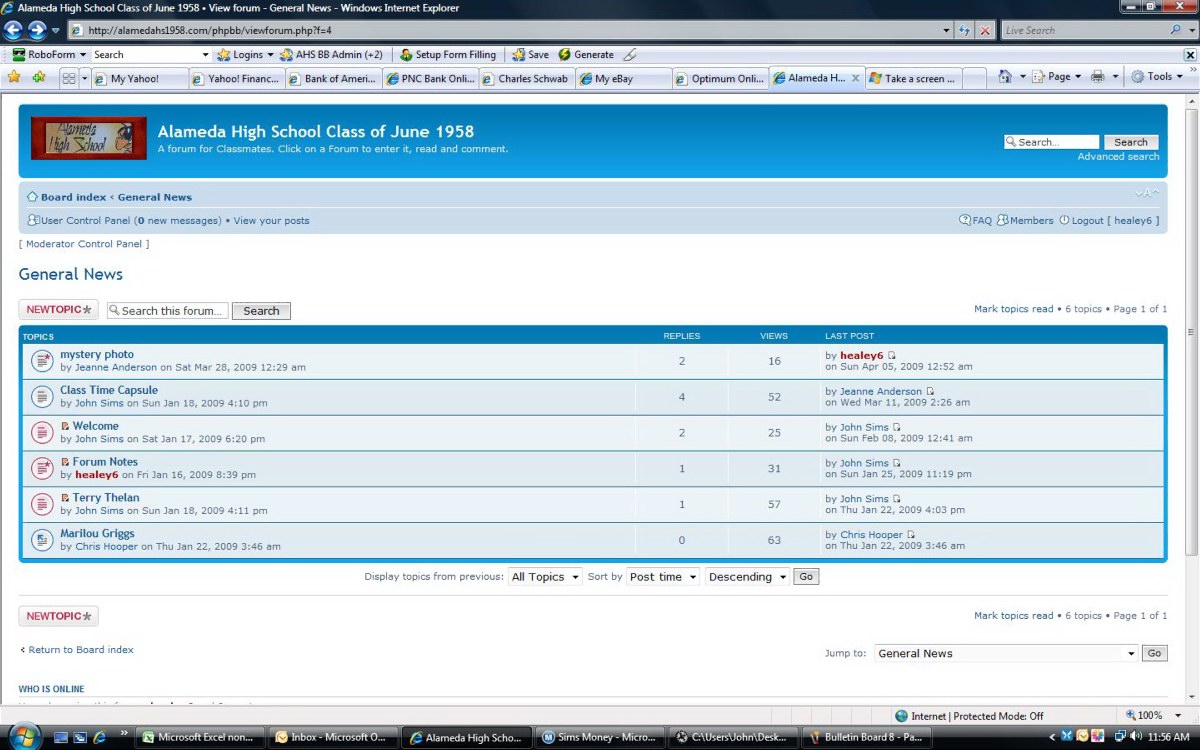
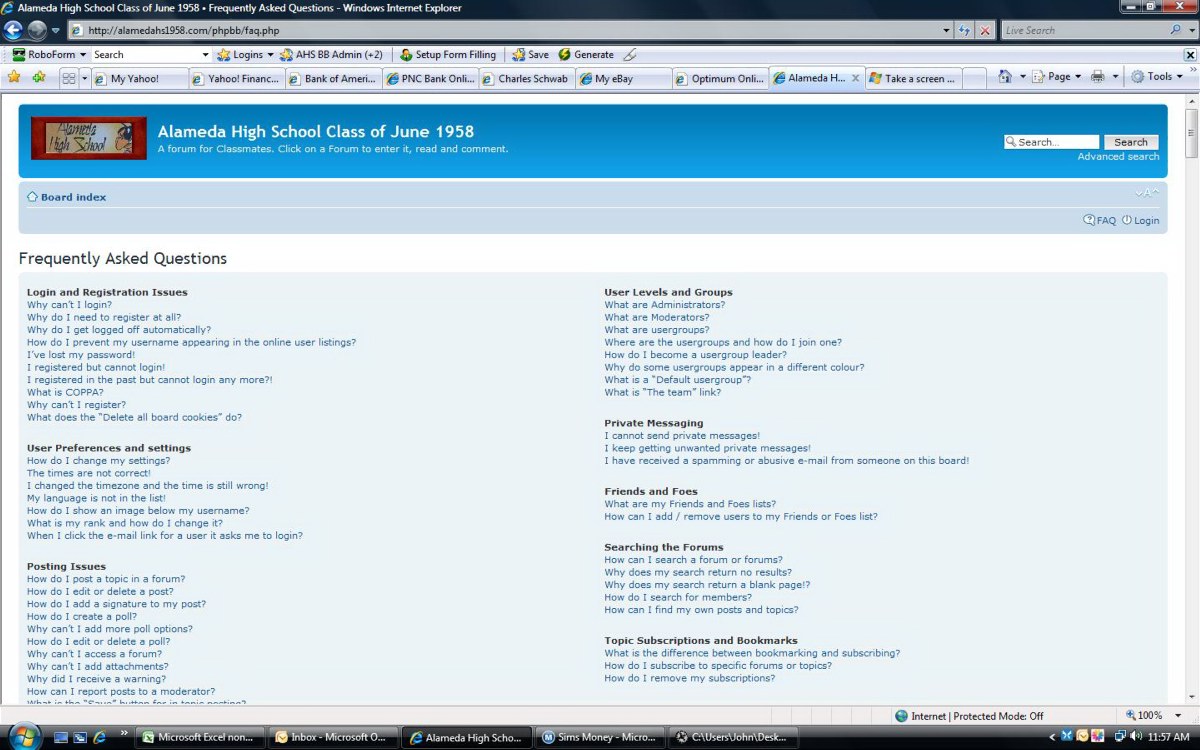
Clicking on the FAQ Link will bring up a sampling of Frequently Asked Questions
and clicking on the proper one will give you a response.
i
As always, when finished, click on the Log Out button.